Key Takeaways: The Best Project Management Tools for Google Calendar Sync
- monday.com — Intuitive project management platform with Google Calendar integration. Start a 14-day free trial of the Pro plan.
- ClickUp — Highly customizable work management platform with Google Calendar integration. Get the Business plan with a 30-day money-back guarantee.
- Wrike — Enterprise-grade project management tool with Google Calendar integration. Try the Business plan free for 30 days.
- Teamwork — Deep Google Calendar integration for client-focused or service teams. Try the Grow plan free for 30 days.
- Trello — Affordable and easy kanban board software with a Google Calendar integration add-on. Try the Premium plan free for 14 days.
Facts & Expert Analysis About Project Management with Google Calendar
- Two-way sync is better than a one-way feed. Tools that support bi-directional syncing with Google Calendar allow updates to flow both ways, ensuring efficiency.
- Calendar-based planning improves team transparency. Shared calendars make it easier for team members to see upcoming deadlines or events in one place.
- Project calendars improve stakeholder communication. When deadlines appear on shared calendars, managers and clients can quickly track upcoming deliverables without needing to open the project management tool.
Managing projects requires juggling tasks, deadlines and meetings across teams. The best project management software with Google Calendar integration eases this process by automatically syncing project timelines with your schedule. In this article, I’ll recommend some of the best project management tools with this feature to help you stay organized.
Cloudwards’ Choice: monday.com
 Cloudwards' Choice: monday.com
My top choice is monday.com because its Google Calendar integration is easy and reliable. It allows you to set up two-way sync using built-in automation recipes, so tasks created in monday.com automatically appear as calendar events, and new events in Google Calendar can create items on your boards. Try it for yourself with a 14-day free trial of the Pro plan.
The 5 Best Google Calendar Integrated Tools Compared
| PM Tool: | Free Plan | Price* | Best For | USP | Limitations |
|---|---|---|---|---|---|
 |
Up to 2 members | $9 | Small to mid-sized teams | Intuitive interface, visual layout | Expensive for large teams |
 |
Unlimited users | $7 | Teams with complex project workflows | Granular customization | Complex for new users |
 |
Unlimited users | $10 | Larger teams | Powerful enterprise-grade features | Steep learning curve |
| Teamwork | Up to 5 users | $10.99 | Client-focused teams | Built for client-focused teams | Limited customization |
 |
Up to 10 users | $5 | Kanban boards | Easy to use & affordable | Lacks native advanced project management features like dashboards |
Methodology: Lab Data & Hands-On Testing
I tried dozens of tools and extensively tested their Google Calendar integration to shortlist the best ones. I focused on comprehensive features and completed a cost-benefit analysis to find the best value for money.
How Did We Rate Project Management Features?
monday.com and ClickUp are the clear winners due to their extensive range of features and powerful native Google Calendar integration. They’re suitable for all kinds of teams and workflows and offer competitive prices.
| Tool: | View Types | Time Tracking | Custom Fields | Dashboards | Real-Time Collab |
|---|---|---|---|---|---|
|
12: list, board, timeline, calendar, etc. | Pro plan | |||
|
16: board, timeline, Gantt, map, etc. | Yes, but limited on lower tiers | |||
|
9: table, board, calendar, Gantt, chart | Business plan | |||
| Teamwork | 4: list, table, board, Gantt | All plans | |||
|
7: board, timeline, table, calendar, dashboard, etc. | No | * |
How Did We Rate Platform & Administration Tools?
Administrative controls are vital when syncing sensitive project data with personal or team calendars. monday.com, ClickUp and Wrike offer custom settings to avoid unauthorized changes and ensure accuracy.
| Tool: | Apps | Storage | File Management | Permissions |
|---|---|---|---|---|
|
Web |
500MB-1000GB | Attach and preview files; integrates with cloud storage (Google Drive, Dropbox) | Granular permission controls (private boards, roles, enterprise-level advanced permissions) |
|
Web |
60MB-unlimited | Built-in docs, file attachments on tasks; integrates with cloud drives; files stored in the workspace | Custom roles & permissions across spaces, folders, lists, tasks |
|
Web |
2GB-50GB per user | Attach files, use proofing tools for review/feedback; solid file collaboration features | Advanced permissions & access controls |
| Teamwork | Web |
100MB-500GB | File attachment and storage linked to tasks/projects; basic document handling | User roles & project-level permissions; control who can view/edit tasks & files |
|
Web |
Unlimited (10MB-250MB per file) | Attach files to cards; integrates cloud storage (Google Drive, Dropbox) | Simple board-level permissions |
How Did We Rate Integration & Automations?
monday.com and ClickUp have a straightforward process to set up integrations with Google Calendar and other tools. They also have an intuitive automation builder that helps ease workflows and reduces manual effort.
| Tool: | Integration Count | Google Calendar | Top Integrations | Native vs 3rd-Party | Automation |
|---|---|---|---|---|---|
|
200+ | Native integration with two-way sync | Slack, Jira, Google Workspace, QuickBooks, Teams | Both native & third-party | Rules-based automation across boards & workflows; no-code automation builder |
|
1,000+ | Native integration with two-way sync | Slack, GitHub, Google Drive/Calendar, Notion, Outlook Calendar, CRM apps | Both native & third-party | Built-in automation builder for conditional workflows, triggers & actions across tasks |
|
1,000+ | Native integration with two-way sync | Slack, MS Teams, Google, Salesforce, Adobe, Tableau | Mostly third-party | Advanced automation & workflow triggers; Wrike Integrate lets you build automated cross-app workflows with drag-and-drop |
| Teamwork | Thousands via Zapier | Native integration with two-way sync | Slack, Google Drive/Calendar, Outlook Calendar, CRM systems | Both native & third-party | Basic built-in automations for task handling |
|
Hundreds (via power-ups & API) | Power-up with two-way sync | Confluence, Bitbucket, Jenkins | Native & third-party (via power-ups) | Butler automation for rule-based triggers |
How Did We Rate Usability & Performance?
monday.com takes the win thanks to its intuitive interface, which is suitable for any kind of team. ClickUp and Wrike offer more granular control but feel slightly more complex. I focused on choosing tools that offer great features while ensuring a seamless user experience.
| Tool: | Learning Curve | Interface Design | Mobile Experience | Support |
|---|---|---|---|---|
|
Easy | Visual, color-coded, intuitive | Very good | 24/7 chat, extensive docs |
|
Intermediate | Modern & highly customizable | Good | Chat, email support |
|
Intermediate-difficult | Flexible but complex | Good | Email, community forum |
| Teamwork | Intermediate | Clean & structured | Good | Email, chat support, help center |
|
Easy | Simple & card-based | Very good | Email support, help docs |
The Best Project Management Tools With Google Calendar Integration Reviewed
I go into more details below for each of the five best project management software that integrates with Google Calendar, including monday.com, ClickUp, Wrike, Teamwork and Trello.
1. monday.com — Intuitive, Visual Project Management Platform With Google Calendar Integration
Key Integrations & Features
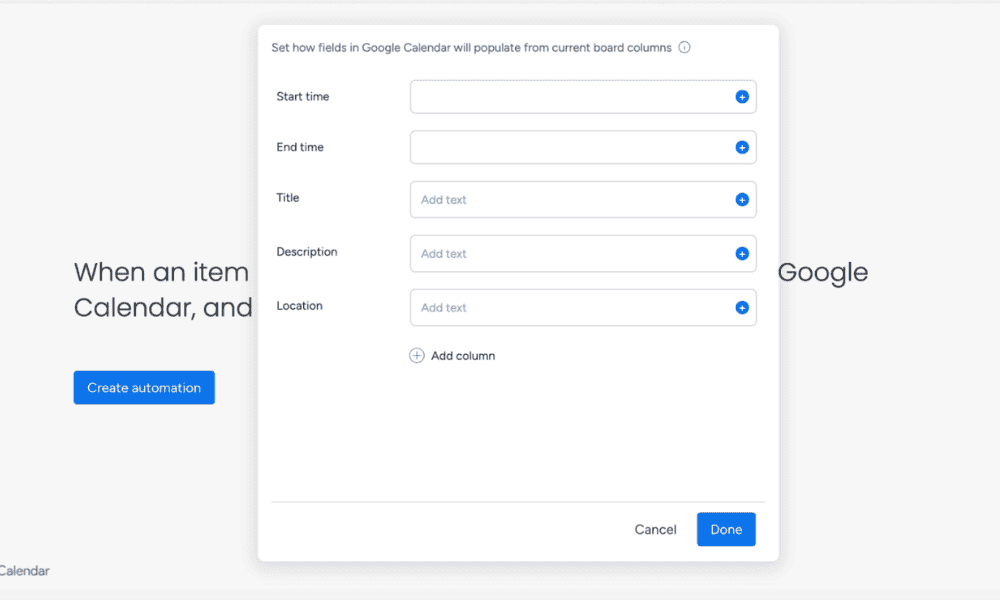
monday.com offers native two-way integration with Google Calendar on the Standard plan and up. Any events you add in monday.com can automatically reflect in Google Calendar, and vice versa. monday.com also supports advanced workflow automations, allowing users to trigger reminders before deadlines or update project timelines when changes occur.
When to Choose monday.com
I recommend monday.com for any team that wants an easy-to-use tool for streamlining projects and team collaboration. As explained in our monday.com review, its visual interface is incredibly intuitive. The Google Calendar integration helps teams stay on top of deadlines and meetings for clarity. Try it for yourself with a 14-day free trial of the Pro plan.
- Maximum users: 2
- Minimum users: 3; All prices per user
- Minimum users: 3; All prices per user
More plans
- Minimum users: 3; All prices per user
- Enterprise-level features.
2. ClickUp — Highly Customizable Work Management Platform With Google Calendar Integration
Key Integrations & Features
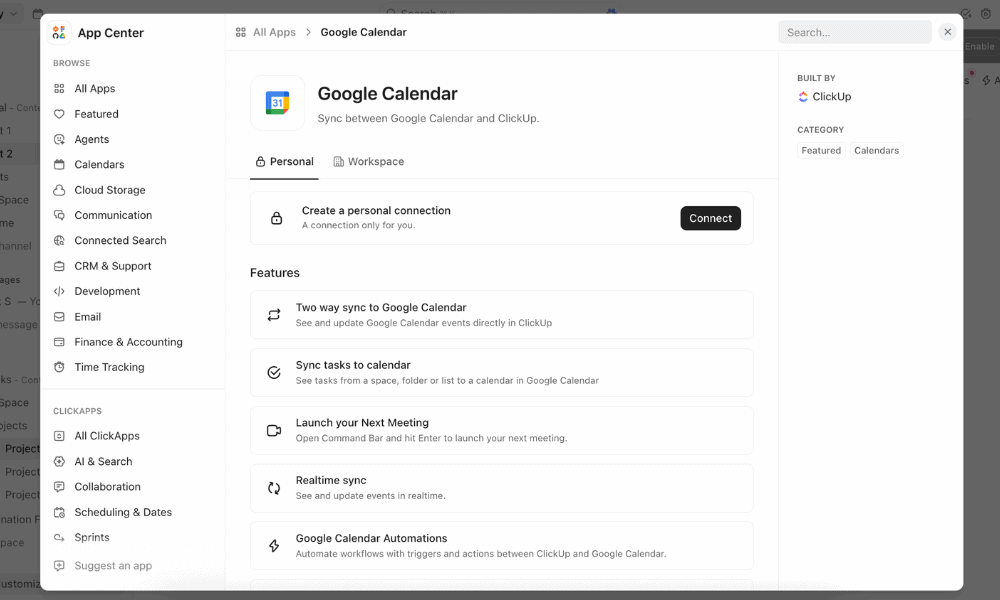
ClickUp’s integration with Google Calendar means that tasks and deadlines with dates or times in ClickUp appear as events in Google Calendar. The integration is available on all plans and lets you choose which spaces, folders or lists sync with specific calendars, reflecting the deep customization ClickUp offers. Learn more in our detailed ClickUp review.
When to Choose ClickUp
ClickUp is a solid option when you need custom workflows alongside automated calendar checkpoints. It’s a powerful all-in-one workspace for teams of all sizes, although the setup requires a bit of configuration. The prices are very attractive, and it offers one of the best free project management plans, which could be a good fit for smaller teams. Try the Business plan with a 30-day money-back guarantee.
- Basic functionality with some limitations
- All prices per user
- All prices per user
3. Wrike — Enterprise-Grade Project Management System That Integrates With Google Calendar
Key Integrations & Features
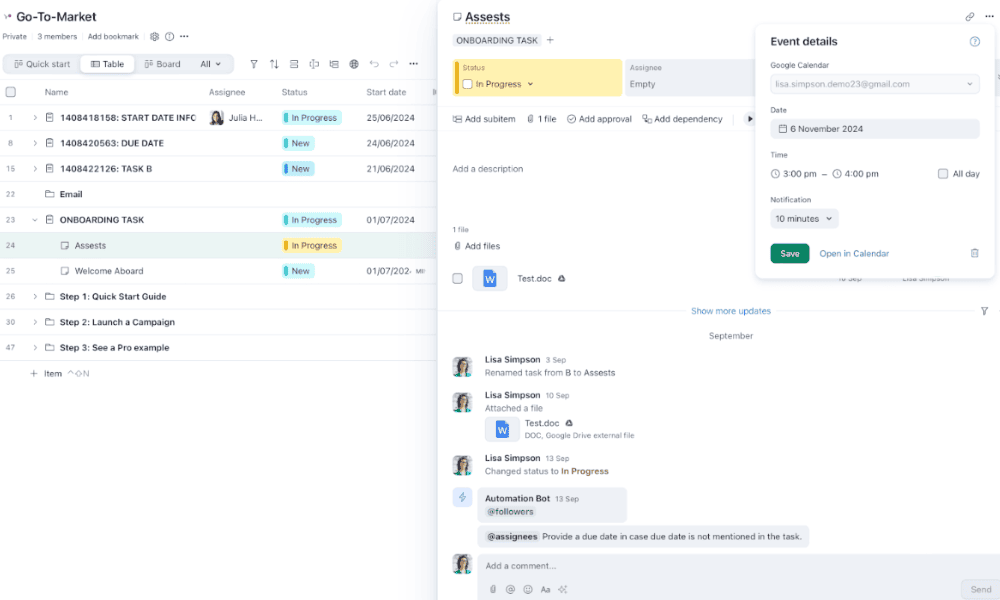
Wrike’s native Google Calendar integration is available on the Business plan and higher. It lets you create Google Calendar events directly from tasks and milestones. You can also connect other apps, including Google Workspace tools, so you can attach files from Google Drive to tasks or turn emails into actionable Wrike items. For more, read our Wrike review.
When to Choose Wrike
The Wrike workspace offers a wealth of features, and granular settings make it particularly well suited for larger teams. I recommend it for balancing detailed task planning with external schedules, especially across distributed or cross-functional teams. It scales well, and you can get a 30-day free trial of the Business plan.
- Unlimited users. Basic features.
- Price is per user. Plans for 5, 10 and 15 users.
- Price is per user. No monthly option. Plans for 5 to 200 users.
More plans
- For large teams; Enterprise-grade security and scalability; Plans for 5 to an unlimited number of users.
- For teams with complex work needs; Advanced tools and analytics for complex work; 5 to unlimited users
4. Teamwork: Client-Centered Project Management Software With Google Calendar Integration
Key Integrations & Features
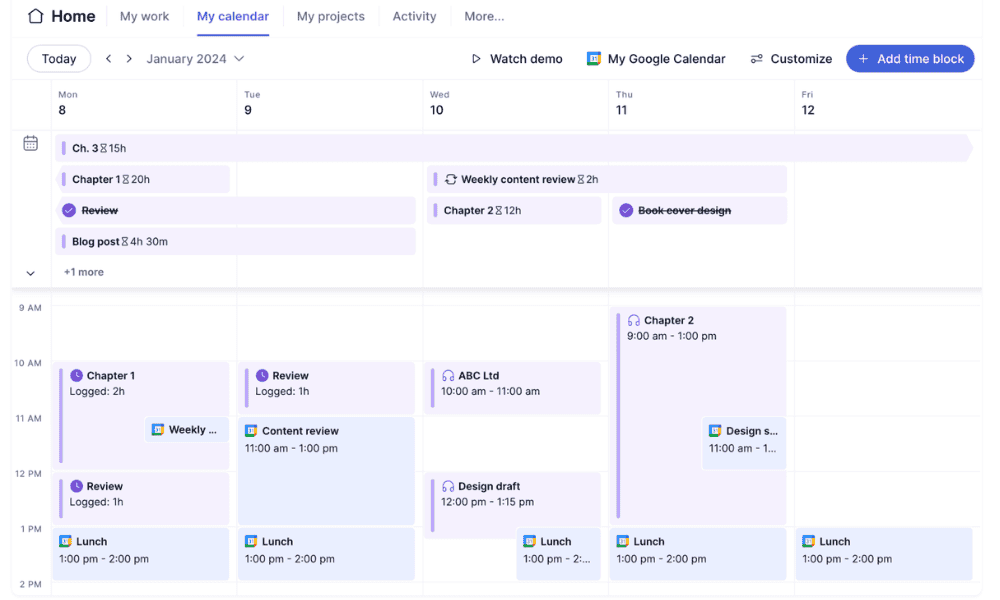
Teamwork natively supports two-way synchronization with Google Calendar on all its plans. Events and updates reflect across both platforms once connected. A standout feature is the ability to log time directly from calendar events in specific projects or tasks, helping teams track billable or internal work accurately.
When to Choose Teamwork
Teamwork is a great choice for teams handling client-facing work. Its integration with Google Calendar makes it easy to sync tasks, milestones and deadlines directly with your calendar, helping teams keep track of upcoming work alongside meetings and events. It’s on the pricey side, but you can get a 30-day free trial of the Grow plan.
| Plan: | Price (per user per month) |
|---|---|
| Basic | $9.99 |
| Accelerate | $24.99 |
| Optimize | Custom |
| Enterprise | Custom |
5. Trello — Easy and Affordable Kanban Board Software With Google Calendar Integration
Key Integrations & Features
Trello is a well-known kanban board project management tool that offers a wide ecosystem of integrations through add-ons called power-ups. To connect to Google Calendar, you will need the “Google Calendar + Trello” two-way sync power-up by Unito. Since this is an add-on, even users on the free plan can opt for it. Read our Trello review to learn more.
When to Choose Trello
I recommend Trello if you want an easy and affordable kanban board tool to manage tasks visually for lightweight workflows. The card-based interface makes it easy to track tasks and collaborate, and its Google Calendar integration allows cards with due dates to sync directly with your calendar. You can get a 14-day free trial of the Premium plan.
- Unlimited users, 10 boards, Unlimited power-ups, Unlimited storage
- Price is per user, Unlimited boards, Custom fields, Invite guests
- Price is per user, Several new views
How to Choose the Right Google Calendar Integrated Project Management Software
The best tools combine features for effective task management, smooth team collaboration and detailed reporting, all at a competitive price point. I discuss what you should specifically look for below.
Final Thoughts
Choosing a project management tool with Google Calendar integration can streamline tasks and deadlines. monday.com stands out as the top choice due to its wealth of features and reliable calendar sync. Try it yourself with a 14-day free trial of the Pro plan.
Have you used any of the tools I recommend? What’s your priority when choosing project management software? Do you prefer simple task boards or more advanced features? Share your thoughts in the comments, and thank you for reading.
FAQ: Project Management With Google Calendar
-
Yes, tools like monday.com allow you to connect multiple Google Calendars to a single workspace or project.
-
Yes, updates usually sync immediately, but sometimes it may take a few minutes. The timing can vary according to which tool you use.
-
Usually, yes, but it depends on the sync setup. If a task in your project management tool is directly synced with an event in Google Calendar, deleting it will typically remove the corresponding calendar event as well.
{“@context”:”https:\/\/schema.org”,”@type”:”FAQPage”,”mainEntity”:[{“@type”:”Question”,”name”:”Can I Sync Multiple Google Calendars to One Project Management Tool?”,”acceptedAnswer”:{“@type”:”Answer”,”text”:”
Yes, tools like monday.com allow you to connect multiple Google Calendars to a single workspace or project.\n”}},{“@type”:”Question”,”name”:”Is the Google Calendar Sync Real Time?”,”acceptedAnswer”:{“@type”:”Answer”,”text”:”
Yes, updates usually sync immediately, but sometimes it may take a few minutes. The timing can vary according to which tool you use.\n”}},{“@type”:”Question”,”name”:”Does Deleting a Task Delete the Google Calendar Event?”,”acceptedAnswer”:{“@type”:”Answer”,”text”:”
Usually, yes, but it depends on the sync setup. If a task in your project management tool is directly synced with an event in Google Calendar, deleting it will typically remove the corresponding calendar event as well.\n”}}]}
The post Best Project Management Software With Google Calendar Integration: Top Tools for Sync & Scheduling in 2026 appeared first on Cloudwards.
Leave a Reply